Official website

Showing posts with label getting started. Show all posts

Friday, June 17, 2016

Open Weather Map API support

Recently, Yahoo change its API and forcing everyone to use OAuth 1.0 in order to access its data. You may experience empty weather info to Jubito's front-end, as well null responses from relational functions, such %todayconditions%, etc.

I decide to implement the new functionality with openweathermap.org API as the weather data source, which I found it more simple and clear.

So, let's see what you have to do.

1) Register and get your API key
2) Expand Settings and go to Weather->Setup
3) Paste the URL you get including your APPID as a parameter, i.e.:
http://api.openweathermap.org/data/2.5/forecast/city?id=524901&units=metric&APPID={APIKEY}


You're all set. Now you can use some of the old functions, plus, the new ones for humidity and pressure. Find all the function set in GitHub wiki.

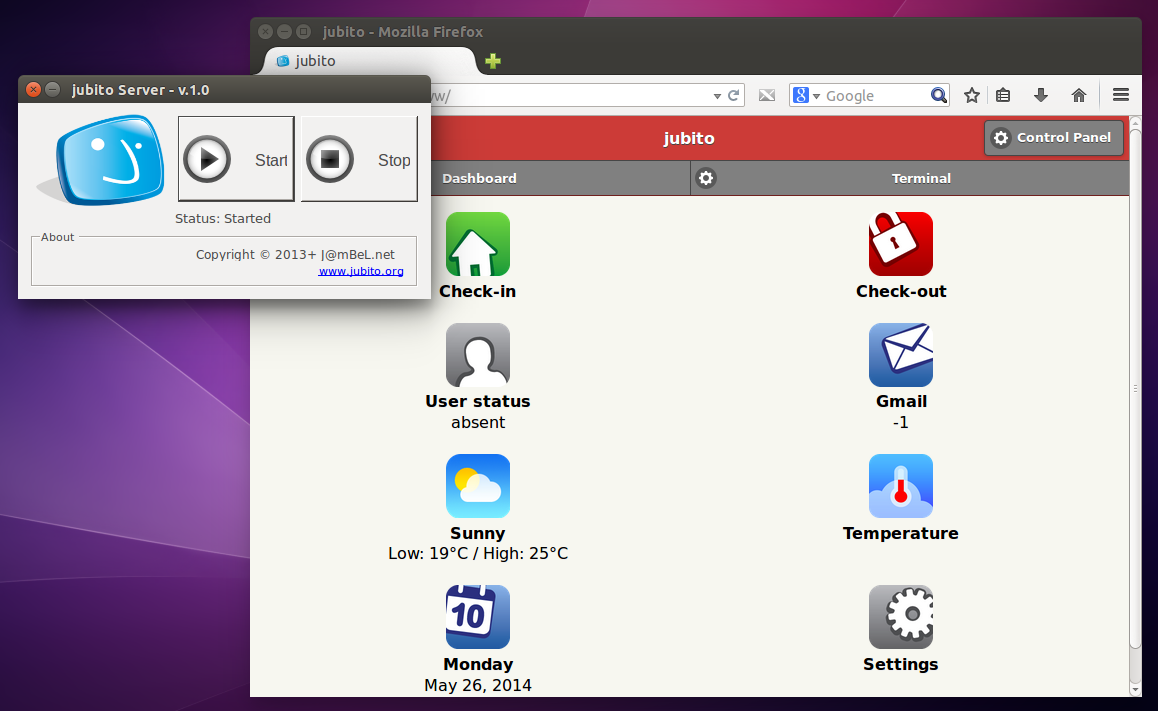
Now your dashboard should look like this:


Wednesday, May 28, 2014

Speech Synthesis & Server Installation [ Revised ]

The new core library (libJanet.dll 0.2.4) is speech independent and not a mandatory module in Jubito ecosystem. That means that you install a speech system at choice. It is convenient for those who don't have a sound card to their server and/or don't want to install extra software. However it can be installed later in case of need. Jubito will automatically determine when a speech widget is available.

For Windows version you have to install Speech SDK and copy jspeech.exe to directory where Jubito-server.exe is located.


For the Linux version install the festival speech synthesis system.
Open a terminal and type...

sudo apt-get install festival

Jubito Server Installation Process
To run Jubito server on Windows you need .NET Framework 4.0 and later and Mono for Linux (sudo apt-get install mono-complete). Then download and extract Jubito server in a directory of your choice. Please make sure you have setup properly the Jubito Server.
Additional information might be available at download section.

For the record, whether version you download will work fine at any OS in any case. The core library (libJanet.dll) is common and the only difference is the server GUI implementation which is Windows Forms & Gtk#.


0.2.4 version changes can be found here.

Sunday, February 17, 2013

Setup gmail, SMTP, POP3

Mail settings is really easy to setup. You can setup any owned account by easily go to Control Panel/Mail and under Setup hit the corresponding button.


These settings apply to %gmailcount%, %gmailreader%, %gmailheaders% and
%pop3count% functions which return information in order to synthesize a new Instruction Set that feed us with information. Responsible command for sending email is judo mail send [params]. A basic Wiki for judo API and built-in functions.

NEW: System email alerts use predefined headers and can be configured by the UI.


If you own a domain name that is associated with your gmail, you can use it as well by giving the full address, e.g. me@mydomain.com.

SMTP is used for sending email notifications when user status is away (system: absent). You can use gmail SMTP for that action. It will also use the headers mentioned above. For example when you receive an email from the system, it will be in form:
Mail from: noreply@xxx.org
Mail to: you@yyy.org
Subject: Alert from Jubito
Body: Any action happened.


Host: smtp.gmail.com
Username: <your_account_name>
Password: <your password>
Port: 587
SSL: True

Setup Clickatel SMS gateway

Clickatel is a famous SMS gateway and its natively supported by Jubito system for sending SMS notifications.

If you already have an account then you can simply go to Control Panel/SMS/Setup and set the API, username and password you've been provided by Clickatel service.

To send an SMS within an Instruction Set do the follow.
Go to Instruction Sets menu and add a new launcher. In the popup window type...

Name: <yourdesiredname> e.g. smsssender
Action: judo sms send <number> `<your message here>`

Telephone format should include the country code, e.g.: +301234567890


When you save the launcher, then it's ready to be invoked by other Instruction Set (see example below) or by using the smssender command. Notice that you need to put an asterisk (*) before launcher in order to be invoked.


If you want to represent this action to dashboard, then fill Category and Header fields. Short description and description are optional.

It can also be revoked by the emergency call button in the main screen.

Changing the default credentials

A wise step after setting up the Jubito server is to change the default credentials (admin:admin) especially if we're going to have it exposed on the internet. Authentication Mode has to be set to "Basic" and "None" if you don't want to login.

UPDATE: Jubito supports a GUI for most settings.


To do so, login and go to the terminal tab. Go to the command line and type...

judo server login <yournewusername> <yournewpass>

then press send. That's it, you can now login with your new credentials!

Web server configuration

This summary is not available. Please click here to view the post.