Wednesday, July 2, 2014
Monday, June 30, 2014
Arduino temperature and humidity using DHT11/DHT22 modules
In this tutorial we will measure the surrounding air to get temperature and humidity.
What we need:
After installation is complete it will appear in library list.
Upload the sketch using codebender
Alternatively download the sketch and upload it to arduino.
Depending what sensor you use, change the line accordingly.
Interfacing with Jubito
First make sure you have properly configure arduino serial port and then enable it.
The same way to make a launcher for humidity...
You can test the new launchers by typing the command to the terminal tab.
Dashboard Interface
Make sure that tempc and humid divs exists in the html document.
The result should look like the screenshot below.
You can expand by applying logic with evaluation function.
What we need:
- Arduino
- DHT11 or DHT22 module
- DHT library
After wiring module to arduino, download and install DHT lib. To do so navigate to Sketch/Import Library/Add Library
After installation is complete it will appear in library list.
Upload the sketch using codebender
Alternatively download the sketch and upload it to arduino.
Depending what sensor you use, change the line accordingly.
#define DHTTYPE DHT11 or #define DHTTYPE DHT22
Open serial monitor and type any of these commands ("dhttemp" "dhttempc") to get temperature and ("hum" "humid" "dhthum") for humidity. You can change the sketch to your preferences by changing the lines...
if (readString == "dhttemp" || readString == "dhttempc")...
else if (readString == "hum" || readString == "humid" || readString == "dhthum")Interfacing with Jubito
First make sure you have properly configure arduino serial port and then enable it.
From Instruction Sets menu press Add New Launcher. Enter a name (handler) and type the following command...
judo serial send dhttempThe same way to make a launcher for humidity...
judo serial send humYou can test the new launchers by typing the command to the terminal tab.
Dashboard Interface
We can now add it to our dashboard. Navigate to Instruction Sets menu press Add New Instruction Set and fill the mandatory fields (name, action, category, header) and some optional if you desire, e.g. Thumbnail URL.
Notice that in action field we add an asterisk in the beginning. It is used to point the gettemp launcher.
Another cool feature is that you can have those notifications in the Home screen. To do so you have to edit index.html file located to /www/ directory. Find the getData function and add the code...
$.get('_.html?cmd=judo serial send dhttemp', function (data) {
$('div#tempc').html(data.replace('<br /\>', '') + '°C');
}, 'html');
$.get('_.html?cmd=judo sleep 1500; judo serial send hum', function (data) {
$('div#humid').html(data.replace('<br /\>', '') + '%');
}, 'html');Make sure that tempc and humid divs exists in the html document.
The result should look like the screenshot below.
You can expand by applying logic with evaluation function.
Labels:
arduino,
automation,
development,
dht11,
dht22,
diy,
how to,
interconnection,
interface,
tutorial
Thursday, June 26, 2014
Arduino radio remote control [ RF 433MHz/315MHz ]
In this post we will develop an Arduino remote control that will receive and transmit at 433MHz/315MHz. This will allow us to control devices that operates in that frequencies such as plug socket receivers.
What we need:
So, let's get started!
After wiring modules to arduino, download and install rc-switch lib. To do so navigate to Sketch/Import Library/Add Library
After installation is complete it will appear in library list.
Upload the sketch using codebender
Alternatively download the sketch and upload it to arduino.
Open serial monitor and press a button of the remote control. You should receive a binary code.
Of course Jubito and jaNET Framework provide the capability to listen the serial port via judo API.
Syntax: judo serial listen <ms>
milliseconds are optional. By default it is set to listen for 10 seconds (10000ms).
If you successfully complete the above steps, then, scan all the buttons of the remote control and write down the corresponding readings. At this time you are ready to create your virtual remote and accomplish transmissions from Jubito.
Syntax: judo serial listen <ms>
milliseconds are optional. By default it is set to listen for 10 seconds (10000ms).
If you successfully complete the above steps, then, scan all the buttons of the remote control and write down the corresponding readings. At this time you are ready to create your virtual remote and accomplish transmissions from Jubito.
First make sure you have properly configured arduino's serial port and then enable it.
From Instruction Sets menu press Add New Launcher. Enter a name (handler) and type the following command...
judo serial send 000111101100000001100001
the binary code is the corresponding key press. For example the button A of the remote control that turns on the plug. To test if the 'plug-A-on' launcher is working, go to terminal tab and type...
plug-A-onthis command should power up the plug!
Dashboard Interface
When you create launchers for all buttons you are ready to create the virtual remote control. Again from Instruction Sets menu press Add New Instruction Set and fill the mandatory fields (name, action, category, header) and some optional if you desire, e.g. Thumbnail URL.
Notice that in action field we add an asterisk in the beginning. It is used to point the plug-A-on launcher. You can write some additional text also if you like, for example...
*plug-A-on Socket A is on
which will cause a response 'Socket A is on' to the button press instead of the 'Operation Completed' system message. After that the new instruction set is accessible from the dashboard.
Now you are able to clone any remote control at 433/315MHz.
Labels:
315MHz,
433MHz,
arduino,
automation,
development,
diy,
how to,
interconnection,
interface,
rc-switch,
tutorial
Monday, June 23, 2014
Execute commands from android app
A simple java snippet for posting commands to jubito server from an android application.
String jubito_Host = "http://192.168.1.98:8080/www/index.html";
String jubito_Username = "your_jubito_username";
String jubito_Password = "your_jubito_password";
String jubito_Command = "%checkin%"; // Your custom Instruction Set or a simple system function
try {
HttpClient httpclient = new DefaultHttpClient();
HttpPost httppost = new HttpPost(jubito_Host + "?cmd=" + URLEncoder.encode(jubito_Command.toLowerCase(), "UTF-8"));
String credentials = jubito_Username + ":" + jubito_Password;
String base64EncodedCredentials = Base64.encodeToString(credentials.getBytes(), Base64.NO_WRAP);
httppost.addHeader("Authorization", "Basic " + base64EncodedCredentials);
HttpResponse httpresponse = httpclient.execute(httppost);
String result = EntityUtils.toString(httpresponse.getEntity());
return result;
} catch (UnsupportedEncodingException e) {
// suppress exception
} catch (Exception e) {
e.printStackTrace();
}
return null;
Labels:
android,
client,
development,
interconnection,
java,
snippet
Asynchronous operations triggered by arduino serial data
Another interesting and useful thing to know about Jubito is that its continuously monitor the serial port where arduino is connected. That allows as to control any message that arduino prints out. There is two ways to use that kind of data. One is by creating a new instruction set, which explained in this post, and the other one is by firing events. The second way is very efficient for asynchronous operations such as motion detection.
Let's make an example.
The above screenshot illustrates a MotionDetected message captured from a PIR sensor. In order to trigger an event or a sequence of actions we have to create a handler with the same name.
On Control Panel select Instruction Sets/Add New Event Handler
Then give the corresponding serial message as the name of the event handler
Action's can be vary depending your needs. In this example I will create a simple email notification. In the action field type...
judo mail send me@gmail.com me@gmail.com `Motion Alert` `A motion is detected at %calendardate% %time24%`
This will produce a message that would tell...
A motion is detected at 23/6/2014 14:07
Syntax of judo mail send API call...
judo mail send <from> <to> `<subject>` `<body>`
Read more about functions & judo API
To avoid signaling you every time that motion is detected you can use %whereami% function within evaluation which is explained in this complete example of security system.
The bottom line is that we can produce a variety of asynchronous operations that would be driven by received serial data.
Wednesday, May 28, 2014
Speech Synthesis & Server Installation [ Revised ]
The new core library (libJanet.dll 0.2.4) is speech independent and not a mandatory module in Jubito ecosystem. That means that you install a speech system at choice. It is convenient for those who don't have a sound card to their server and/or don't want to install extra software. However it can be installed later in case of need. Jubito will automatically determine when a speech widget is available.
For Windows version you have to install Speech SDK and copy jspeech.exe to directory where Jubito-server.exe is located.
For the Linux version install the festival speech synthesis system.
Open a terminal and type...
sudo apt-get install festival
Jubito Server Installation Process
To run Jubito server on Windows you need .NET Framework 4.0 and later and Mono for Linux (
Additional information might be available at download section.
sudo apt-get install mono-complete). Then download and extract Jubito server in a directory of your choice. Please make sure you have setup properly the Jubito Server.Additional information might be available at download section.
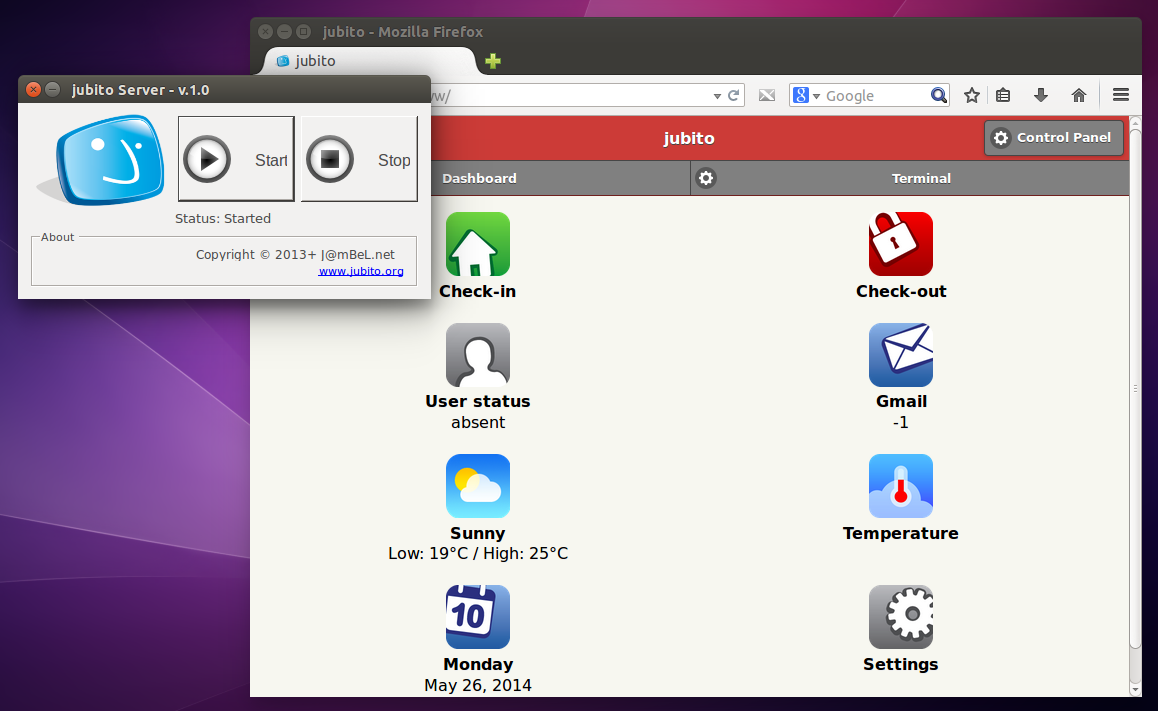
For the record, whether version you download will work fine at any OS in any case. The core library (libJanet.dll) is common and the only difference is the server GUI implementation which is Windows Forms & Gtk#.
0.2.4 version changes can be found here.
Thursday, May 22, 2014
Subscribe to:
Posts (Atom)


